You want every new subscriber to get a free PDF the moment they join your beehiiv newsletter. Most guides tell you to build a paid automation or paste a Google Drive link into your welcome email. beehiiv now has a native answer: a free digital product. You upload the PDF, set the price to free, and beehiiv collects the email, adds the person to your list and emails them the file.
By the end you will have the PDF, a live free product page, a welcome email that backs it up, a way to see who joined for which freebie, and a plan for earning from the list.
We make TextBuilder, the AI book writer mentioned in the PDF step. Everything about beehiiv comes from its own help center and pricing pages, read on November 28, 2026, and linked at the end. beehiiv did not pay for this article.
Short answer
- Method: Monetize > Products > New product > Free product > File / Download. Upload the PDF, publish, share the product page. beehiiv emails the file to everyone who claims it.
- Plan: free digital products are listed for all plans, Free included. Automations for follow-up series need a paid plan.
- Time: about 30 minutes in beehiiv once the PDF is ready.
- Cost: $0 on Free (up to 2,500 subscribers). Lite starts at $49 a month billed yearly, $59 month to month.
What you need before you start
- A verified beehiiv account. Free works. beehiiv sends no emails until the account is verified.
- Your finished PDF. beehiiv locks the file once the product is published, so proofread first.
- A product image. It is required; a simple cover of the PDF is fine.
- Your beehiiv website. Every plan includes one, and the free product page lives there.
Step 1: Create the PDF
A lead magnet is the free thing you give in exchange for an email address. It works when it solves one small problem fast. "My complete guide to gardening" is too broad; "A 7-day plan to start a balcony herb garden for under $40" gets signups. Match it to your newsletter topic, so the people who download it also want your next email, and aim for 5 to 20 pages.
The quickest way to a structured guide is TextBuilder, the AI non-fiction book writer we make. It builds a whole book from your own material, not a loose chat answer, and tracks key ideas and terms across chapters so your definitions stay consistent.
- Book types that suit a freebie: workbook, guided journal, step-by-step how-to, playbook.
- Upload your notes or old posts as source files (.docx, .pdf, .md, .txt), so the guide sounds like you.
- Lite exports PDF. One credit is one word and a cover costs 2,500 credits, so a 6,000-word guide plus cover uses about 8,500 of Lite's 50,000 monthly credits.
- 50+ languages and a Content Rights Certificate with every book. No free plan, a 30-day money-back guarantee instead.
Our TextBuilder review for niche bloggers shows the output. With no budget, write it yourself in Google Docs or Canva and download it as a PDF; an honest 8-page checklist beats a padded 40-page one. Starting from ChatGPT? Read our ChatGPT prompts for lead magnets first.
Step 2: Turn the PDF into a free product in beehiiv
beehiiv's help center says lead magnets are built with digital products set to free, and free products need no Stripe account. At the time of writing the steps are:
- In the left panel, go to Monetize > Products and click + New product.
- On Product access, choose Free product, then Next.
- On Product type, choose File / Download, then Next.
- Fill in Product name, a plain-text Description (used for SEO), Product details and the Call-to-action copy, for example "Send me the guide".
- Upload your PDF under File / Download.
- Optional: pick a Survey people must answer first, or a Post-purchase redirect to a thank-you page.
- Shorten the Product page URL and upload the Image.
- Click the arrow next to Save draft, choose Publish, then Publish product.
After publishing, the type and the file are locked; title, description, details and button text stay editable. A free product can never become paid. If you will update the guide often, choose Link / Media instead and point it to a public cloud file you can replace, as beehiiv itself suggests.
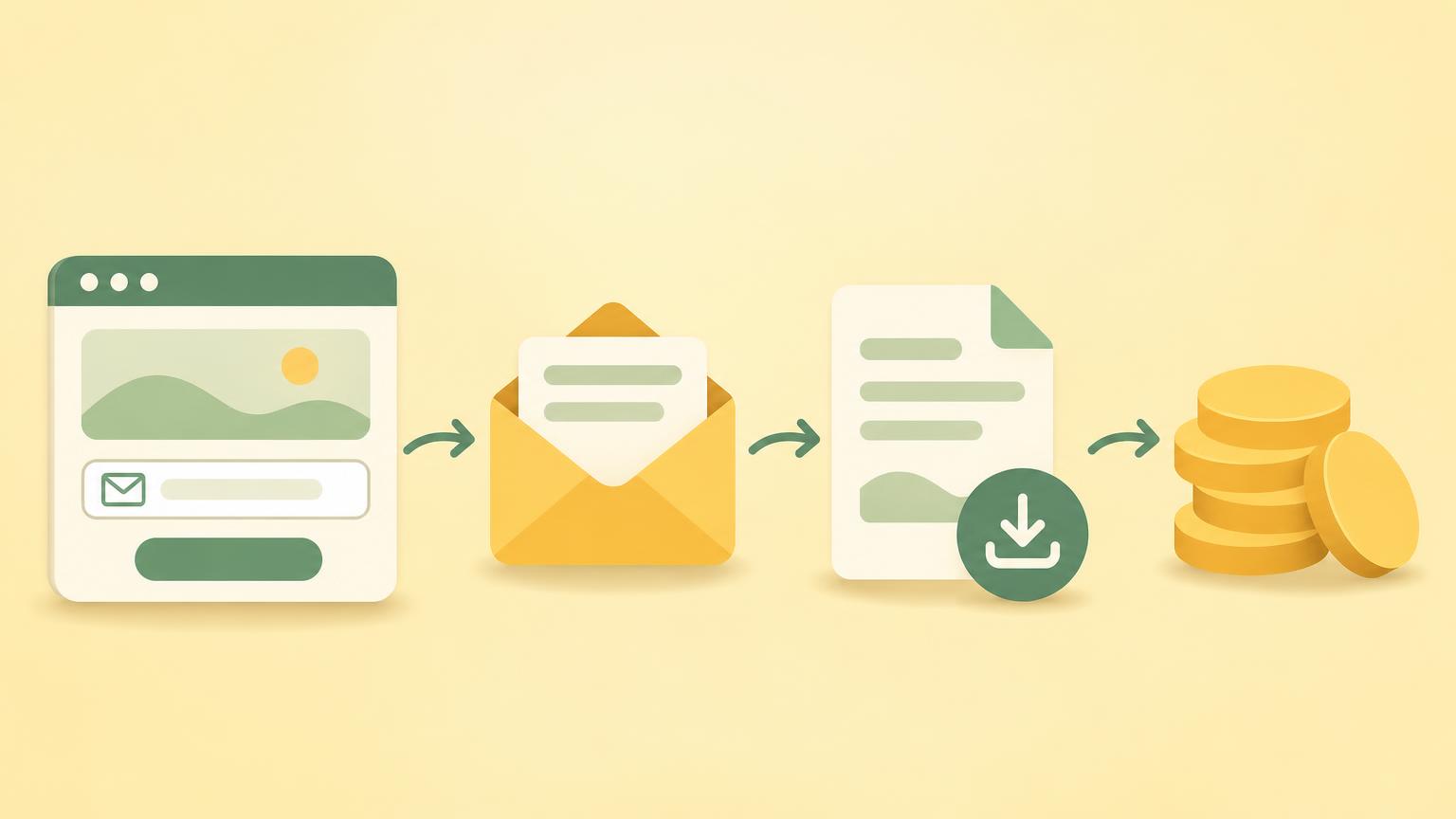
When a new visitor claims it, they join your list and get an email with a link to their subscriber center, where they can download the PDF again any time. A logged-in subscriber also sees an instant download window. Each claim appears under Monetize > Products > Orders with the payment status "Free".
Step 3: Put the freebie in front of readers
- Add it to a page: Website > Builder, click +, and under Synced drag the Products block onto the canvas. Pick the product, then Publish and Publish to live site. beehiiv now has two builders (Website Builder and Advanced Website Builder), so menus can differ slightly.
- Put it in posts: in the product's three-dot menu choose Add to post, or type /product while writing. Older posts with search traffic are ideal.
- Share the product page link in your bio and from your blog, with UTM tags such as
?utm_source=instagram&utm_campaign=herb-guide. beehiiv records UTMs for signups through subscribe forms on your site under Acquisition Details; the help center does not say whether product claims are recorded the same way, so check one test profile. - Cross-promote with magic links: in Subscribers > Magic Links, pick the partner's email platform (Kit, Mailchimp, MailerLite and others), and under Advanced options add UTMs and a Redirect URL to your product page. Magic links work only inside emails.
A product page headline to adapt:
Headline: The 7-Day Balcony Herb Garden Plan (free PDF)
Subhead: One small task a day, a shopping list under $40 and
a planting chart you can print. It arrives in your inbox in
a minute.
Button: Send me the plan
Small print: You will also get my weekly newsletter.
Unsubscribe any time.
Keep the small print: people who claim a free product join your list, so say so.
Step 4: Write a welcome email that backs it up
The product email delivers the file; the welcome email is the first message that sounds like you. It works on every plan, and beehiiv advises putting anything you promised near the top.
- Go to Settings > Emails, scroll to Preset Emails, and under Welcome Email click Configure Welcome Email.
- Add a Subject Line, Preview Text and the message in Content.
- Click Preview, then Save.
- Back in Preset Emails, switch on Enable a welcome email that is sent to new subscribers. Nothing sends until you do.
Subject: Your herb garden plan (and what comes next)

Hi there,

Thanks for joining [Newsletter name]. Your free 7-Day Balcony
Herb Garden Plan is on its way in a separate email. Not there?
Check Promotions or Spam, or grab it here: [product page link]

Every Thursday I send one short email: a seasonal task, one
easy plant, and one mistake to avoid.

Quick favour: hit reply and tell me what you are growing. It
helps these emails reach your inbox, and I read every answer.

[Your name]
Double opt-in (confirming the address by clicking a button) sits in the same place: Preset Emails > Double Opt-in Email. With it on, new people stay "Pending" and the welcome email waits until they confirm. beehiiv still sends the free product email to pending subscribers, so the PDF is never held back. Smart Nudge sends one reminder to anyone unconfirmed after 48 hours.
Step 5 (paid plans): Follow-ups and tags
One free product needs no automation. Automations help when you want a short series after the PDF, or run several freebies. They are paid-plan only: Lite allows 10 live automations, Pro and Enterprise unlimited, and the 14-day free trial includes them.
- Open Automations, click Create automation, and under Quick start templates choose Lead magnet automation > Use template, or start a New automation.
- Pick and activate a trigger: Product purchased (specific products), Email submitted (a specific form, embedded ones included) or Manual linked to a native Website Builder form block.
- Add Update subscription to apply a tag like "LM: herb plan".
- Add Time delay and Send email steps, for example tips on day 2 and a soft offer on day 5.
- Name it, set Allow re-entry? (usually No re-entry) and click Publish. A green Live label means it runs.
Two cautions. If the welcome email is on and an automation uses the Signed up trigger, people get two welcomes. And the help center does not say outright that free claims fire the Product purchased trigger, so test with a fresh address first.
Without automations, use Subscribers > Segments > Create Segment: beehiiv suggests a product purchased segment for people who claimed a given freebie, and segments can also filter by Acquisition/UTM Campaign or Acquisition/Embed Source.
Free plan with a form on another site
If your form lives on WordPress, link your blog's call to action straight to the product page. To keep an embedded form, build it in Subscribers > Subscribe forms > Create new form, and on the Settings tab choose Redirect to an external website, pointing at a thank-you page with the download link. Put the same link in your welcome email. For Google Drive or Dropbox files, set sharing to anyone with the link, or readers hit a request-access screen. This works for one freebie, since the welcome email goes to everyone.
beehiiv lead magnet not working? Fixes
| Problem | Likely cause | Fix |
|---|---|---|
| No emails go out at all | Account not verified yet | Finish beehiiv's verification email |
| Welcome email never arrives | Toggle off, or subscriber still Pending | Enable it in Settings > Emails; it sends after confirmation. Allow 15 to 30 minutes |
| Your own test does nothing | That address is already subscribed; welcomes are not resent | Test with a never-used address |
| PDF email in Promotions or Spam | New custom domain still building reputation | Ask readers to move it to Primary and reply |
| Automation did not fire | Trigger inactive, still Draft, or Manual trigger with no linked form | Activate the trigger, publish, look for Live |
| Embedded form skips the automation | Form-to-Manual linking works only for native form blocks | Use Email submitted with that form |
| Typo in a published PDF | Files lock on publish | Archive and create a new product (new URL), or use Link / Media |
| Magic link fails in a test | No subscriber address in the test, or opened in a browser | Send the test with Simulated Subscriber |
Turning subscribers into income
- Digital products: sell a paid guide or template pack next to the freebie. beehiiv takes 0%; Stripe's standard 2.9% + $0.30 per transaction applies, and paid products need Stripe connected.
- Paid subscriptions: paid plans only, 0% take rate, same Stripe fee.
- Ad Network: paid plans only. Advertisers pay per 1,000 unique opens (CPM) or per payable click (CPC), up to 3 ads per post, paid on the 20th for the previous month via Stripe Express. The pricing page shows "Avg. $39/mo" ad earnings next to Lite and Pro at 1,000 subscribers; that is beehiiv's average, not a promise.
- Paid recommendations (formerly Boosts): paid plans only. Recommend other newsletters in your signup flow and earn a set amount per verified subscriber.
- Tip Jar (every paid plan, 0%) and affiliate links; see our affiliate marketing guide.
The simplest path is a small paid product one step beyond the freebie, like a $19 full-season planner after the free 7-day plan, pitched at the end of your follow-ups. Every number below is an assumption:
| Item | Assumption | Per month |
|---|---|---|
| Plan | 1,000 subscribers on Lite, billed yearly | -$49.00 |
| Paid planner | $19, bought by 1.5% of the list (15 sales) | $285 gross, $272.23 after Stripe |
| Paid tier | $5 a month, 2% of the list (20 people) | $100 gross, $91.10 after Stripe |
| Ad Network | 4 sends, $5 CPM, 450 unique opens each | $9.00 |
| Total | Before tax | $323.33 |
The planner does most of the work here; ads add little at this size. For a checkout-and-upsell funnel in one tool, see our Systeme.io lead magnet funnel guide.
beehiiv vs Kit vs Substack for a PDF lead magnet
| Platform | How the PDF gets delivered | Our guide |
|---|---|---|
| beehiiv | Native free digital product (all plans), welcome email, paid-plan automations | This article |
| Kit | An incentive email attached to a form or landing page | Kit incentive email guide |
| Substack | No lead magnet setting, but you can attach the PDF to the free-subscriber welcome email | Substack lead magnet guide |
beehiiv pricing for a lead magnet setup
US dollars a month, yearly billing / monthly billing, from beehiiv.com/pricing:
| Plan | Limit | 1,000 subs | 2,500 subs | 10,000 subs |
|---|---|---|---|---|
| Free | 2,500 | $0 | $0 | n/a |
| Lite | 100,000 | $49 / $59 | $69 / $79 | $119 / $139 |
| Pro | 250,000 | $95 / $109 | $129 / $149 | $199 / $239 |
Yearly billing saves up to 20%, sends are unlimited on every plan, Pro removes beehiiv branding, and subscribers are counted across all publications in your workspace.
More PDF lead magnet guides
FAQ
Does beehiiv have a lead magnet feature?
Yes, as free digital products under Monetize > Products. The help center calls this using free digital products as lead magnets.
Can I deliver a lead magnet on the beehiiv Free plan?
Yes. Free products and the welcome email are listed for all plans. Multi-email follow-ups need Lite or higher.
Can I attach the PDF to the welcome email?
beehiiv's welcome email guide recommends a link to what you promised. A May 2024 product update announced file attachments in the editor, but the help center does not document them for the welcome email, so check the / menu there. A product page link is the documented route.
Do subscribers get the PDF before confirming double opt-in?
Yes. The product email goes out while they are Pending; the welcome email and automations wait for confirmation.
Do I need Stripe for a free product?
No. Stripe is needed only for paid products and subscriptions, and Stripe Express for Ad Network and paid recommendation payouts.
Sources
Read on November 28, 2026:
- Using free digital products as lead magnets
- Creating digital products for your website
- Adding digital products to your site
- Managing digital product orders
- Setting up your welcome email
- Welcome email vs. welcome automation
- Reasons your welcome emails may not have sent
- Double opt-in and Smart Nudge
- Automations overview
- How to create automation workflows
- Troubleshooting automation triggers and email sends
- Creating an embedded subscribe form
- How to use magic links and why they may not work
- Subscriber attribution from your website
- Creating and using segments
- Ad Network FAQ
- Boosts to paid recommendations
- Plan types and tier pricing and beehiiv pricing
- Product roundup, November 16, 2026 and File attachments (May 2024)
- Kit: The incentive email

Books have been my thing for as long as I can remember. I studied publishing, I write my own novels, and somewhere along the way I got obsessed with Amazon KDP - the algorithm, the categories, the keyword rules nobody explains properly. Now I help other authors publish books that look professional and get found by readers instead of disappearing on page nine.
More from Christina