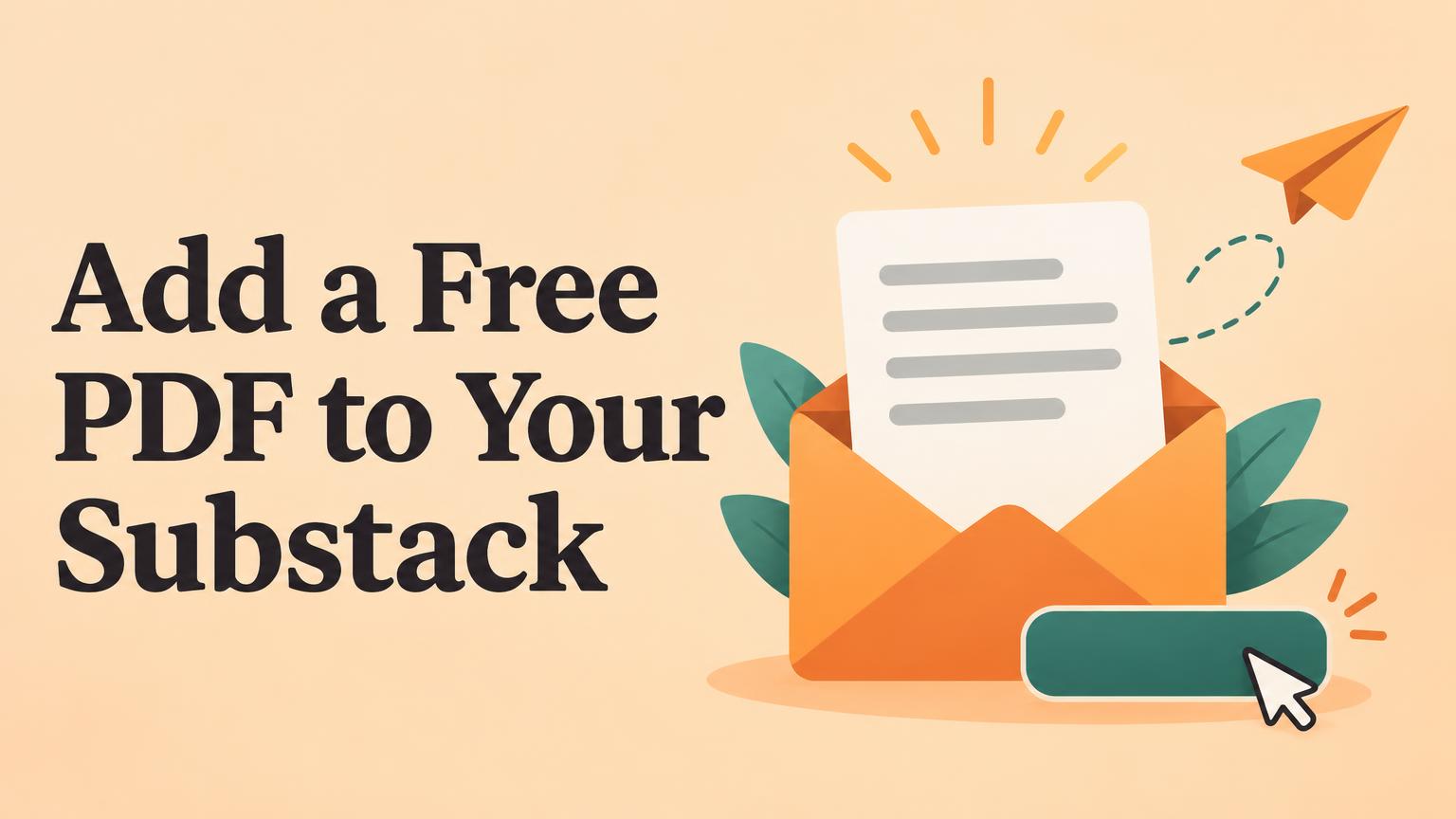
Substack has no "lead magnet" setting. There is no form builder with an upload field and no button labelled "send this PDF to everyone who subscribes".
The good news: Substack already has three places that can carry your free PDF, and one of them sends it automatically. By the end of this guide you will have a PDF that reaches every new free subscriber, a shareable page that asks for a signup before the download, and a plan for turning those readers into paying ones.
We make TextBuilder, the AI book writer mentioned in the PDF step. Everything about Substack comes from its own help center and pricing pages, read on November 28, 2026, and linked at the end. Substack did not pay for this article.
Short answer
- Method: drag the PDF into your "Welcome email to free subscribers" (Settings, Emails section). Substack's help center confirms file embeds work in welcome emails.
- Plan: none needed. Substack is free to publish on; it only keeps 10% if you turn on paid subscriptions.
- Time: about 15 minutes once the PDF exists.
- Extra options: a freewalled post that holds the PDF, or a separate email tool such as Kit that delivers the file before you import the subscribers into Substack.
What you need before you start
- A Substack publication. If it is still in profile mode, welcome emails only start after you publish 2 posts (more on that in the fixes table).
- The PDF itself. Step 1 below covers how to make one worth an email address.
- A home for the file. Either Substack itself (you upload the PDF into the email or post) or a share link from Google Drive, Dropbox or your own website.
- A place people sign up. Your Substack welcome page, the subscribe button in your posts, or Substack's embed form on your own blog.
A quick word on terms. A lead magnet is a free resource you give in exchange for an email address. An opt-in is the moment someone agrees to get your emails. Double opt-in means they also click a confirmation link before they are added.
Step 1: Create the PDF
A lead magnet earns an email address when it solves one small, specific problem fast. "My 12 best posts" rarely does. "The 7-day pantry reset checklist" or "A first-month plan for new freelance editors" does. Match it to your newsletter topic, and keep it to 5 to 20 pages.
If you want a properly structured guide or workbook rather than a stretched blog post, TextBuilder is built for this job. You upload your own notes or old posts as source files and it writes a whole non-fiction book around them, keeping your key terms and ideas consistent from the first chapter to the last.
- Lead magnet formats: book types include workbook, guided journal, step-by-step how-to and playbook, all good fits for a freebie.
- PDF on the cheapest plan: Lite ($59, one payment) exports PDF and gives 50,000 credits a month. 1 credit = 1 word and a cover costs 2,500 credits, so a 6,000-word guide with a cover uses about 8,500 credits.
- Your notes, your language: source files in .docx, .pdf, .md or .txt, and 50+ languages.
- Peace of mind: a Content Rights Certificate comes with every book. There is no free plan, a 30-day money-back guarantee instead.
Our TextBuilder review for niche bloggers goes deeper. No budget? Write the guide in Google Docs or Canva and download it as a PDF. Use clear headings and end each page with one action. If you plan to draft with a chatbot, read our ChatGPT prompts for lead magnets first, including why a raw chatbot PDF tends to fall flat.
Workaround 1: Put the PDF in your free-subscriber welcome email
This is the closest thing Substack has to automatic delivery. Every reader who joins your free plan gets the welcome email, and Substack's help center says file embeds (PDF, EPUB, XLSX and a few others) can be dropped into welcome emails, not only into posts. At the time of writing, the steps are:
- Open your publication's settings at your.substack.com/publish/settings (your own subdomain).
- Scroll to the Emails section. You may see four welcome emails: to free subscribers, to paid subscribers, to imported subscribers and to founding subscribers.
- Click Edit next to Welcome email to free subscribers.
- Rewrite the default text (a template is below). Drag and drop your PDF into the draft. The embed shows the file's title, format and size; use its menu to Edit the title, add a description or a thumbnail.
- If you prefer to host the file elsewhere, paste a Drive, Dropbox or website link instead. A link lets you update the PDF later without touching the email.
- Click Save. Subscribe with a spare address to check the file arrives.
Two details matter. If you never edited the default template, it includes Substack's New Reader survey, so decide whether to keep it. And the welcome email only reaches people who subscribe from now on; existing readers need a post (Workaround 2).
Run a blog as well? Copy the embed code from Settings > Growth features into your site. The form works wherever iFrames do (not Medium) and is not customizable, so put the offer in the text above it: "Get the free checklist: subscribe below."
Copy-paste welcome email
Subject: Your free [Checklist name] is inside

Hi, and welcome to [Publication name].

As promised, here is your free [Checklist name]:
[Drop the PDF here, or paste your download link]

It takes about [10] minutes to use. Start with page [2],
it gives you the quickest win.

What happens next:
- Every [Tuesday] you get one post about [topic].
- Paid subscribers also get [benefit 1] and [benefit 2].
  [Upgrade button]

One question: what made you sign up today? Just hit reply.
I read every answer.

[Your name]
Substack's own advice is to put an upgrade button above the fold of the welcome email, before the reader has to scroll. If you have not turned on payments yet, drop those two lines.
Workaround 2: A freewalled post that holds the PDF
Nobody sees the welcome email before subscribing. A post fixes that. Substack's freewall shows a preview to everyone and asks visitors to "Subscribe for free to continue reading" before they see the rest, so you can put the PDF below the line and share the post anywhere: Notes, social media, your blog, a podcast show note.
- Create a new text post on the web (freewalls do not work on audio, video or email-only posts). Write a short preview: what the PDF is, who it is for, what is inside.
- Place your cursor where the preview should end. Click More in the toolbar, then Freewall. A line labelled "Subscriber-only content below this line" appears.
- Below the line, drag in the PDF file (the file limit for a PDF embed is 700 MB) or add your download link.
- Click Continue and confirm that Audience is set to Subscribers only (or Free or paid subscribers if payments are on).
- Publish. Use Preview and Non-subscriber view to check that strangers see the subscribe prompt.
- Link the post from your welcome email, your About page and your navigation bar.
Emailing the post to your list is the easy way to give the PDF to people who subscribed before Workaround 1.
New visitors also see your Welcome page (your.substack.com/welcome). It cannot hold a file, but its one-line description can mention the offer: edit it under Settings > Basics, for example "Weekly tips for new freelance editors, plus a free first-month plan."
Which Substack email can carry your PDF
| Who gets it | Good use for a PDF | |
|---|---|---|
| Welcome email to free subscribers | Everyone who joins your free plan | Your main lead magnet |
| Welcome email to imported subscribers | People you add by CSV upload, if you choose to send it | The same file, for readers from another tool |
| Welcome email to paid subscribers | New paying readers | A bigger bonus, such as a full workbook |
| Welcome email to founding subscribers | Readers on your founding plan | A thank-you extra |
| Referral reward emails | Readers who reach a referral tier | A reward for bringing friends |
Substack's features page also lists drip campaigns, automated email sequences triggered by events such as a new free subscriber, with delays set in hours. The help center has no step-by-step article for them yet, so look in the Emails section of your settings to see what your publication offers. If you use one for new free subscribers, put the PDF in its first email.
Workaround 3: Collect emails with Kit, then import them to Substack
Want a real landing page with a download button? Use a dedicated tool and treat Substack as the place you publish. Kit's Free plan covers up to 10,000 subscribers and includes unlimited landing pages and forms plus "deliver opt-in incentives", which sends a file automatically when someone signs up.
- In Kit, build a form or landing page. Open Settings in the builder, then the Confirmation Email tab, select Download and upload your PDF. Our Kit incentive email guide walks through this and its common errors.
- On the form, say clearly that subscribers will also get your Substack newsletter, for example: "Get the checklist and my weekly newsletter on Substack."
- Every week or two, export the new subscribers from Kit as a CSV file. Substack's import article links to export instructions for ConvertKit, Kit's former name.
- In Substack, go to the Dashboard, then Subscribers, then Add subscribers, and use Add subscribers by upload (.csv, .xlsx or .ods).
- Confirm the subscribers opted in, tick Apply tags to imported subscribers and name the tag after the lead magnet, so you can see later who came from it.
- Decide whether to send the imported welcome email. They already have the PDF, so edit that email to say hello rather than deliver the file twice.
The consent part is not optional. Substack requires that imported lists contain only people who explicitly opted in to emails from your publication, may review an import (usually within 72 hours) and may restrict a publication that imports people who did not. Under GDPR, Substack says the lawful basis for an import is your responsibility. Duplicates are skipped, and past unsubscribers must subscribe again themselves.
Where to host the PDF
- Inside Substack: drag the file into the email or post. Simplest, but replacing the file means editing each place it appears.
- Google Drive: click Share, under General access choose Anyone with the link, set the role to Viewer, then Copy link. Google says anyone with that link can open it without signing in. Leave downloading allowed for viewers.
- Dropbox: hover over the file, click Share, Copy link, then Manage and pick Link for viewing. Dropbox says a view-only link lets people without an account preview the file.
- Your own website: upload the PDF to your media library and use its address. Full control, no sharing settings to get wrong.
The 3 workarounds compared
| 1. Welcome email | 2. Freewalled post | 3. Kit, then import | |
|---|---|---|---|
| Automatic delivery | Yes, to new free subscribers | Readers open the post themselves | Yes, in Kit; the import is manual |
| Reaches existing readers | No | Yes, if you email the post | No |
| Shareable page | No | Yes | Yes, a Kit landing page |
| Extra cost | None | None | None on Kit's Free plan |
| Setup time | About 15 minutes | About 30 minutes | An hour, plus regular imports |
| Best for | Everyone, start here | Growing from Notes, search and social | Bloggers with lots of web traffic |
Most writers should combine 1 and 2: the email delivers automatically, the post gives you something to share. Add 3 if your own site already gets steady traffic.
Substack lead magnet not working? Fixes
| Problem | Likely cause | Fix |
|---|---|---|
| No welcome email at all | Publication is in profile mode with fewer than 2 posts | Publish 2 posts, or switch the theme from "Profile" to "Custom" in Settings |
| Reader says nothing arrived | Spam or Gmail Promotions tab | Ask them to add [subdomain]@substack.com to contacts and try your.substack.com/account/email-test |
| New readers wait before getting emails | "Require email address confirmation" is on | Tell them to click the confirmation email first, or turn the setting off in Emails |
| "You need access" on the Drive link | General access is Restricted | Set it to Anyone with the link, Viewer |
| Dropbox asks readers to log in | You shared a link for editing | Switch to Link for viewing |
| Everyone can read the PDF post without subscribing | Audience is set to Everyone | Set Audience to Subscribers only, then Update now |
| Imported Kit subscribers do not appear | Import under review, duplicates, typo domains or past unsubscribes | Wait up to 72 hours, check the skipped count, and ask past unsubscribers to subscribe again |
Turning subscribers into income
On Substack the money mostly comes from paid subscriptions, and the fees are simple: publishing is free, Substack keeps 10% of each subscription payment, and Stripe charges 2.9% + $0.30 per US card payment plus 0.7% for recurring billing. The minimum price is $5 a month or $30 a year, and you can add a founding member plan at any price above your annual one.
How the PDF feeds paid conversions:
- Sell the next step. The free PDF is the checklist; the paid tier is the weekly deep dive.
- Put the upgrade in the welcome email. Substack recommends an upgrade button near the top, with the free and paid differences laid out.
- Give paying readers a bigger file. With payments on, Subscriber Perks can offer a digital download up to 700 MB to paid or founding members, shown in a Perks tab that nudges free readers to upgrade.
- Add other income: sponsorships, a low-price product with its own sales funnel, or honest affiliate links.
A worked example. These are assumptions for illustration, not benchmarks:
| Line | Assumption or result |
|---|---|
| Visitors to your freewalled PDF post and welcome page | Assume 2,000 a month |
| Signup rate | Assume 5%: 100 new free subscribers a month |
| Free list after 12 months | 1,200, assuming nobody leaves |
| Upgrade to paid | Assume 3%: 36 paid readers |
| Price | $8 a month: $288 gross |
| Substack 10% | -$28.80 |
| Stripe 2.9% + $0.30 per payment | -$19.15 |
| Stripe Billing 0.7% | -$2.02 |
| You keep | About $238 a month |
Change any assumption and the result moves a lot. A better lead magnet raises the signup rate at the top, and everything below grows with it.
More PDF lead magnet guides
FAQ
Can you attach a PDF to a Substack welcome email?
Yes. Substack's help center says file embeds can be added to welcome emails and referral reward emails. Edit the email in Settings, Emails section, and drag the PDF into the draft.
Does Substack have automated email sequences?
Substack's features page lists drip campaigns triggered by events such as a new free subscriber. The help center had no setup article for them on November 28, 2026, so look in the Emails section of your settings.
Do I need a paid Substack plan for a lead magnet?
No. Substack has no paid plans for writers. It only takes 10% of subscription revenue once you charge readers.
Can I gate a download behind a free signup on Substack?
Yes, with a freewall. Put the PDF below the freewall line and set the post's Audience to Subscribers only.
Can I move lead magnet subscribers from Kit or Beehiiv to Substack?
Yes, by CSV upload, as long as everyone explicitly opted in to your emails. If you have not picked a platform yet, compare this with Beehiiv's lead magnet setup.
Sources
Read on November 28, 2026:
- Substack: How do I set up welcome emails on Substack?
- Substack: How can I attach a file to my Substack post?
- Substack: How do I add a freewall to my Substack post?
- Substack: What is a Welcome page on Substack?
- Substack: Can I embed a signup form for my Substack publication?
- Substack: Features (drip campaigns, welcome emails, fees)
- Substack: How much does Substack cost?
- Substack: How do I set up a paid publication on Substack?
- Substack: Founding member plan
- Substack: What are Subscriber Perks on Substack?
- Substack: What are subscriber referrals on Substack?
- Substack: How do I import my mailing list from another platform?
- Substack: How do email list imports work?
- Substack: Importing a large list and the GDPR
- Substack: How do I add tags to a subscriber on Substack?
- Substack: How do I manually add a new subscriber?
- Substack: How do I require new subscribers to confirm their email?
- Substack: Not receiving any emails
- Substack: What are subscriber segments?
- Kit: Pricing
- Kit: The Confirmation Email
- Google Drive Help: Share files from Google Drive
- Dropbox Help: Create and share links

Books have been my thing for as long as I can remember. I studied publishing, I write my own novels, and somewhere along the way I got obsessed with Amazon KDP - the algorithm, the categories, the keyword rules nobody explains properly. Now I help other authors publish books that look professional and get found by readers instead of disappearing on page nine.
More from Christina