Systeme.io can do the whole job in one account: the signup page, the free PDF, the follow-up emails and the checkout. The catch is the free plan. It gives you one automation rule, one email campaign and one tag, so the funnel only works if you plan around those limits from the start.
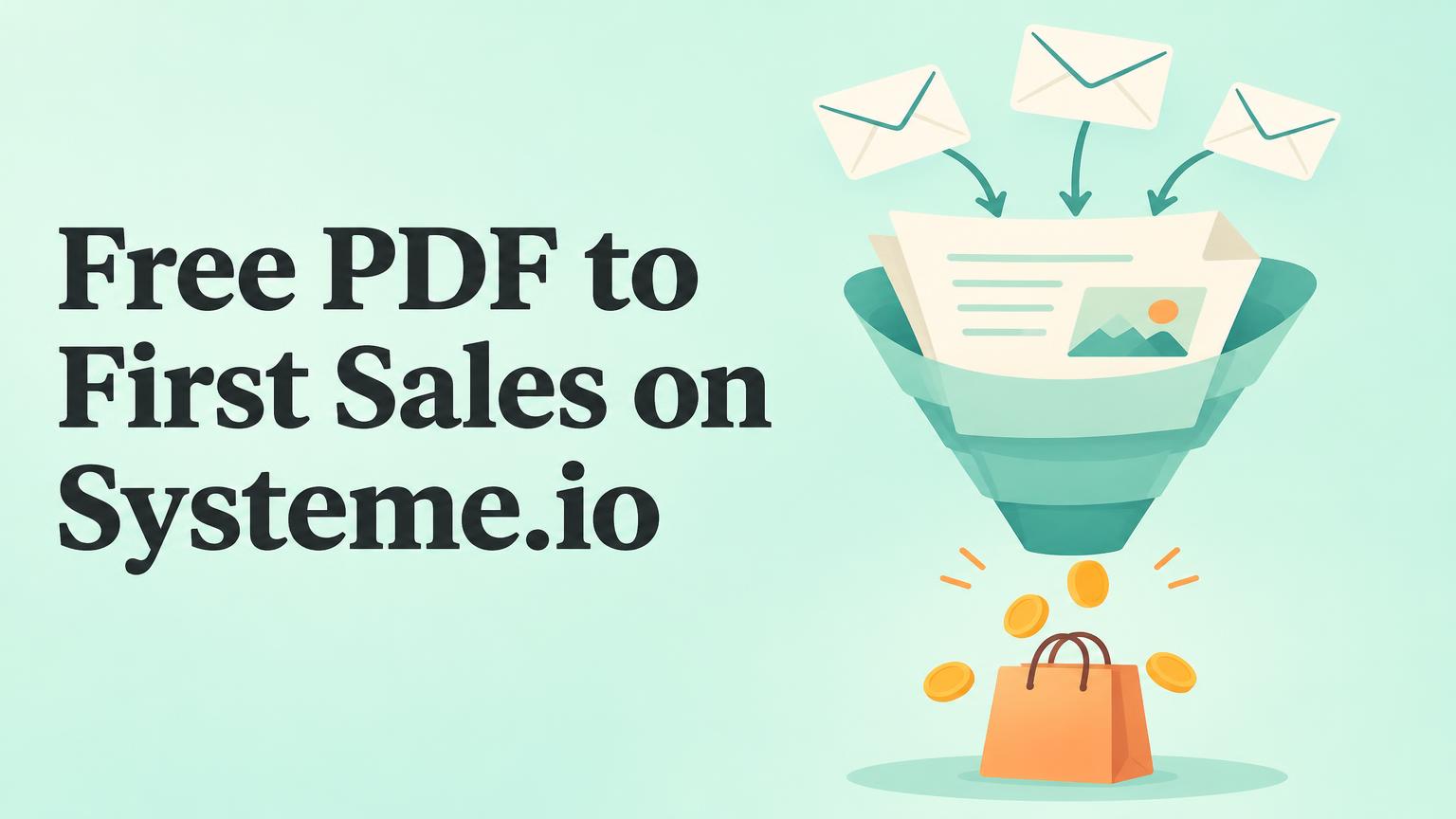
This guide walks you through that plan stage by stage. At the end you will have an opt-in page, a thank-you page that hands over the PDF, a delivery email, a short welcome sequence and a low-price offer that takes card or PayPal payments, all on the free plan if you want.
We make TextBuilder, the AI book writer mentioned in the PDF step. Everything about Systeme.io comes from its own help center and pricing pages, read on November 28, 2026, and linked at the end. Systeme.io did not pay for this article.
Short answer
- Method: a "Build an Audience" funnel, a Download file button on the thank-you page, and your one automation rule to email the PDF and start a welcome campaign.
- Plan: the free plan is enough to start (2,000 contacts, 3 funnels, 1 automation rule, 1 campaign, 1 tag). Startup costs $17 a month, or $170 a year.
- Selling: an order form with a one-time price, paid through Stripe or PayPal. Systeme.io charges 0% transaction fees on every plan.
- Watch out: sending needs your own authenticated domain, attachments are capped at 5 MB, and free accounts stop taking payments after $10,000 in lifetime sales.
- Time: plan an afternoon for the setup once the PDF is ready.
What you need before you start
- A systeme.io account. The free plan needs no credit card.
- A domain name with a working website. Systeme.io says domain authentication is mandatory to send emails, and Gmail or Yahoo addresses cannot be the sender.
- The PDF. Under 5 MB if you want to attach it to an email.
- A Stripe account or a PayPal Business account for the sales stage.
- One small paid offer that follows on from the freebie: a longer guide, a workbook, a template pack or a mini course.
Step 1: Create the PDF
A lead magnet is the free thing you give in exchange for an email address. It earns that email when it is specific ("a 7-day plan to post your first 10 Pinterest pins"), gives a fast win, matches your blog topic and can be read in one sitting. Five to twenty pages is plenty. It should lead to your paid offer: the freebie solves the first problem, the product the next one.
If you have notes, old posts or a course outline but no time to shape them, TextBuilder builds a whole structured book from your own material, which gives you a real guide instead of a few loose pages. Our TextBuilder review for niche bloggers covers it in detail.
- Upload your notes as source files (.docx, .pdf, .md or .txt), so the guide is built on your own ideas.
- Pick a book type that suits a freebie: workbook, step-by-step how-to, playbook or guided journal.
- The Lite plan ($59 one payment, 50,000 credits a month) exports PDF. One credit is one word, so a 6,000-word guide plus a cover (2,500 credits) uses about 8,500 credits.
- 50+ languages and a Content Rights Certificate with every book. No free plan, a 30-day money-back guarantee instead.
The free route works too: write the guide in Google Docs or Canva, add a simple cover and export it as a PDF. Our list of AI book cover generators helps if you want the cover to look like a real product.
Stage 1: Build the funnel and the opt-in page
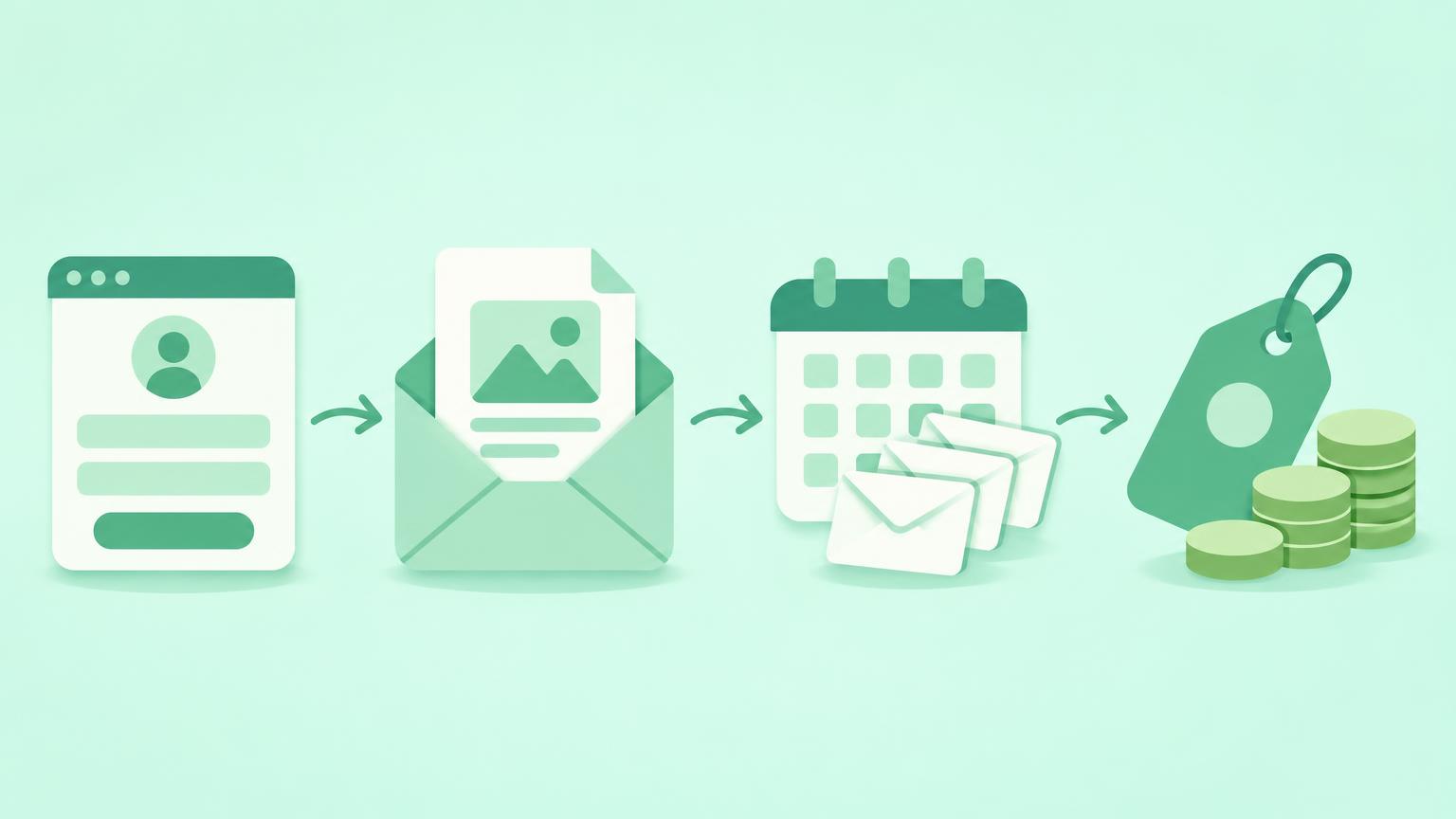
A funnel is a set of pages a visitor moves through in order. Yours starts with the opt-in page (or squeeze page), where people enter their email, and the thank-you page. At the time of writing, the steps are:
- Go to Sites > Sales funnels and click Create.
- Enter a name, select your domain, choose the funnel goal Build an Audience and your currency, then click Create. This type comes with an Opt-in page and a Thank you page.
- Open the opt-in page, pick a template and click Edit page.
- Drag a Form input element onto the page and set its Input type to Email. Add a first name field if you want to use it in emails. The form needs at least one Email field.
- Click the button and set Action when button clicked to Submit form, with the redirect To the next step, so people land on the thank-you page.
- Optional: add a Checkbox element for marketing consent and mark it mandatory. Systeme.io keeps consent records you can download later.
- Decide on double opt-in, where people must click a link in a confirmation email before they join your list. Click the Settings (gear) icon on the button and tick Do you want to enable double opt-in on this form? Edit the confirmation email under Settings > Emails > Double opt-in > Edit confirmation email.
Know two things about double opt-in here: all emails and automations wait until the contact confirms, and contacts who do not confirm within 24 hours are deleted. If you switch it on, the thank-you page must clearly say "check your inbox and confirm".
A fill-in template for the opt-in page. Keep the headline about the result, not the PDF.
Headline:
Get [specific result] in [short time], even if [common obstacle]

Subheadline:
A free [number]-page [guide / workbook / checklist] for [who it is for].

Inside you will find:
- The [number]-step method I use to [do the thing]
- [Number] ready-to-use [templates / scripts / examples] you can copy today
- The one mistake that stops most [audience] from [result], and the fix

Button: Send me the free guide
Small print: Free. A few emails a week. Unsubscribe any time.
Stage 2: Deliver the PDF
Use both routes. The thank-you page gives the file instantly, and the email gives people a copy they can find again.
Route A: a download button on the thank-you page
- Open the thank-you page in the funnel and click Edit page.
- Drag a Button element onto the page and choose the button action Download file.
- Click the cloud-shaped button, drag in your PDF (or pick one already in your account) and click Insert.
- Click Save, then Preview, and test the download.
Uploaded files also appear under Assets > Files, with unlimited storage on all plans. You can copy a file's URL to link it from an email.
Route B: the delivery email (your one automation rule)
An automation rule is an "if this happens, do that" instruction. The free plan allows one, so put every action into that single rule.
- In the funnel, select the opt-in page, open the Automation Rules tab and click Add rule.
- Click + to add a trigger and choose Funnel step form subscribed.
- Click + to add an action, choose Send email, then the + icon to create the email.
- Write the email (template below) and attach the PDF. Attachments are limited to 5 MB and appear as links at the end of the email.
- Add the action Add a tag, for example "lead-magnet-1". A tag is a label on a contact that shows where they came from.
- Click Save rule. You will add one more action in Stage 3.
Set up your sender first. Under Settings > Emails, confirm an address on your own domain in Verified email addresses, and authenticate the domain in the Domains section: systeme.io gives you three CNAME records and a DMARC record to add at your domain host.
Subject: Your [guide name] is inside

Hi [first name],

Thanks for signing up. Here is your copy of [guide name]:

[Download the guide]  (attachment link, or paste the file URL here)

Start with page [number]. It takes about [number] minutes
and gives you [the quick win].

Over the next week I will send you a few short emails about
[topic]. If they are not for you, the unsubscribe link is
at the bottom.

Talk soon,
[Your name]

P.S. Reply and tell me your biggest problem with [topic].
I read every answer.
Stage 3: The welcome sequence
A campaign in systeme.io is a sequence: emails that go out one after another with delays you set. The free plan allows one, which is all this funnel needs.
- Go to Emails > Campaigns, click Create, add a name, sender address and description, then Save.
- Click the campaign name, then Create. Fill in subject, sender name and address, pick the Classic editor or Visual editor and a template. Do not switch editors halfway, or the content is lost.
- Write the email and use Save and test to send yourself a copy.
- Activate each email: click the three dots, choose Activate, pick the previous email in This email will be sent after and set the Delay. You can also limit sending to certain hours or weekdays.
- Back in your automation rule, add the action Subscribe to campaign, select this campaign and click Save rule.
A simple five-email outline:
- Email 1 (day 1): one tip that makes the PDF easier to use.
- Email 2 (day 3): a short story or example of the result.
- Email 3 (day 5): the next problem the reader will hit.
- Email 4 (day 6): your paid offer as the answer, with a link to the order form.
- Email 5 (day 8): a reminder and answers to common questions.
Note: an email inserted mid-sequence only reaches contacts who have not passed that point yet.
Stage 4: Add the paid offer
This is where the list starts paying. A common first offer is a tripwire: a low-price product that turns a free subscriber into a customer. Add the order form as a new step in the same funnel, or build a separate funnel with the Sell goal (Order form plus Thank you page). The free plan allows 3 funnels and 15 funnel steps.
- Connect payments: profile picture, Settings, Payments > Gateways, then Connect for Stripe and/or PayPal. PayPal needs a Business account.
- Enable them on the funnel: Sites > Sales funnels, the three dots next to the funnel, Settings, tick Credit card or debit card and PayPal, then Save.
- Click Add step, choose Order form from the Type list, pick a template and click Create.
- Under Choose offer type, select Digital product, click + Create new product, name it and click Add product.
- Click + to add a price plan, choose One-time payment, then Create a new one. Enter the amount and tax behaviour, click Create, then Save.
- Keep the Email, First name and Last name fields on the form. Stripe needs email and first name, PayPal needs all three.
- Deliver the product with a sales Thank you page (Add step, Sales category) and a Download file button, as in Stage 2. If you sell a course instead, add it as the resource (one course on the free plan).
- Optional: add an order bump (a small extra ticked on the order form) or an Upsell step after the order form. The free plan includes one of each.
- Paste the order form URL into emails 4 and 5.
- Test it with View funnel step and refund yourself. Systeme.io suggests a low test price such as $1, and notes that Stripe does not allow live-mode tests with real card details.
For the thinking behind tripwires and upsells, see our review of the Sell Like Crazy sales funnel course covers the strategy side.
Systeme.io lead magnet not working? Fixes
| Problem | Likely cause | Fix |
|---|---|---|
| Form submits but no contact appears and no email goes out | Button action is not Submit form | Set Action when button clicked to Submit form |
| Error "At least one email input is required" | No email field, or its Input type is not Email | Add a Form input with Input type Email, or set a non-form button to Open URL |
| Subscribers never get the PDF email | Double opt-in is on: emails wait for the confirmation click, unconfirmed contacts are deleted after 24 hours | Ask people to confirm on the thank-you page, and offer the download there too |
| Emails land in spam or are rejected | Domain not authenticated, or a Gmail or Yahoo sender | Authenticate your domain under Settings > Emails > Domains and send from it |
| The PDF will not attach | File over 5 MB | Compress it, link the file URL, or use the thank-you page button |
| Campaign emails do not send | Email still inactive (gray dot) | Three dots, Activate, then set the previous email and delay |
| Your test signups stop triggering the rule | A trigger fires at most 20 times for the same contact | Test with fresh email addresses |
| Payment page stopped taking orders | Free accounts have a $10,000 lifetime sales limit (warning at $8,000) | Upgrade to a paid plan |
Turning subscribers into income
The pricing page lists 0% transaction fees on all plans, so systeme.io takes nothing from your sales. Stripe and PayPal still charge their own processing fees. On the free plan, keep the $10,000 lifetime sales limit in mind.
- A low-price product plus an order bump and an upsell, as built in Stage 4.
- A course hosted in systeme.io (1 course and 500 students on the free plan).
- Your own affiliate program, included on every plan, so others promote your product for a commission.
- Other people's affiliate links in your sequence. Our guide to affiliate marketing covers the basics.
One worked example. Every number is an assumption for a small blog, not a result or a benchmark. Swap in your own.
| Step | Assumption | Result per month |
|---|---|---|
| Visitors to the opt-in page | 2,000 from blog posts and social | 2,000 |
| Signups | 15% opt-in rate | 300 subscribers |
| Buy the $19 guide from the sequence | 3% of new subscribers | 9 sales, $171 |
| Add the $9 order bump | 30% of buyers | about 3, $27 |
| Take the $47 upsell | 10% of buyers | about 1, $47 |
| Total before Stripe or PayPal fees | 0% systeme.io transaction fee | about $245 |
It also shows when limits bite. At 300 new subscribers a month, the free plan's 2,000 contacts fill up in about seven months, the point where Startup at $17 a month makes sense. The $10,000 sales limit is more than three years away. The formula is visitors x opt-in rate x buy rate x price, so a better headline or offer moves the result more than any setting.
Free plan or Startup for this funnel?
| Limit (pricing page) | Free ($0) | Startup ($17 a month, or $170 a year) |
|---|---|---|
| Contacts | 2,000 | 5,000 |
| Sales funnels / funnel steps | 3 / 15 | 10 / 50 |
| Automation rules / workflows | 1 / 1 | 10 / 5 |
| Email campaigns / tags | 1 / 1 | 10 / 10 |
| Order bumps / 1-click upsells | 1 / 1 | 10 / 10 |
| Courses | 1 | 5 |
| Emails sent / file storage | Unlimited / unlimited | Unlimited / unlimited |
| Transaction fees | 0% | 0% |
Above that sit Webinar ($47 a month or $470 a year, 10,000 contacts) and Unlimited ($97 a month or $970 a year). Upgrade when you need a second freebie or separate buyer emails. For a newsletter without checkout, see our guides to the Kit incentive email and the beehiiv lead magnet setup.
More PDF lead magnet guides
FAQ
Is the systeme.io free plan enough for a lead magnet funnel?
Yes, for one freebie. It covers 2,000 contacts, 3 funnels, 1 automation rule, 1 campaign and 1 tag, with unlimited emails. Put all actions in the single rule and you can run opt-in, delivery, sequence and a paid offer.
Does systeme.io take a percentage of my sales?
No. The pricing page lists 0% transaction fees on every plan. Stripe or PayPal charge their usual processing fees.
Can systeme.io send the PDF automatically?
Yes. A rule with the trigger Funnel step form subscribed and the action Send email delivers it. Attachments are capped at 5 MB and show as links at the end of the email.
Where do I host the PDF?
In systeme.io itself, under Assets > Files. Storage is unlimited on all plans.
Sources
Read on November 28, 2026:
- systeme.io: Pricing and plan comparison
- How to create a funnel
- How to build your contact list using a sales funnel
- How to set up double opt-in
- How to add a checkbox
- How to host and share a file on systeme.io
- How to manage files on systeme.io
- How to send an automatic email when a lead subscribes
- How automation rules work
- How to set up an email campaign
- How to automate a series of emails
- Email campaigns: common scenarios
- How to authenticate your domain name
- Using a personal email address as sender
- How to connect your Stripe account
- How to integrate PayPal
- How to activate payments by Stripe or PayPal
- How to create and configure a price plan
- How to sell your eBook
- How to create an upsell and a downsell
- How to make a test purchase
- How systeme.io subscriptions work (free plan sales limit)

Books have been my thing for as long as I can remember. I studied publishing, I write my own novels, and somewhere along the way I got obsessed with Amazon KDP - the algorithm, the categories, the keyword rules nobody explains properly. Now I help other authors publish books that look professional and get found by readers instead of disappearing on page nine.
More from Christina